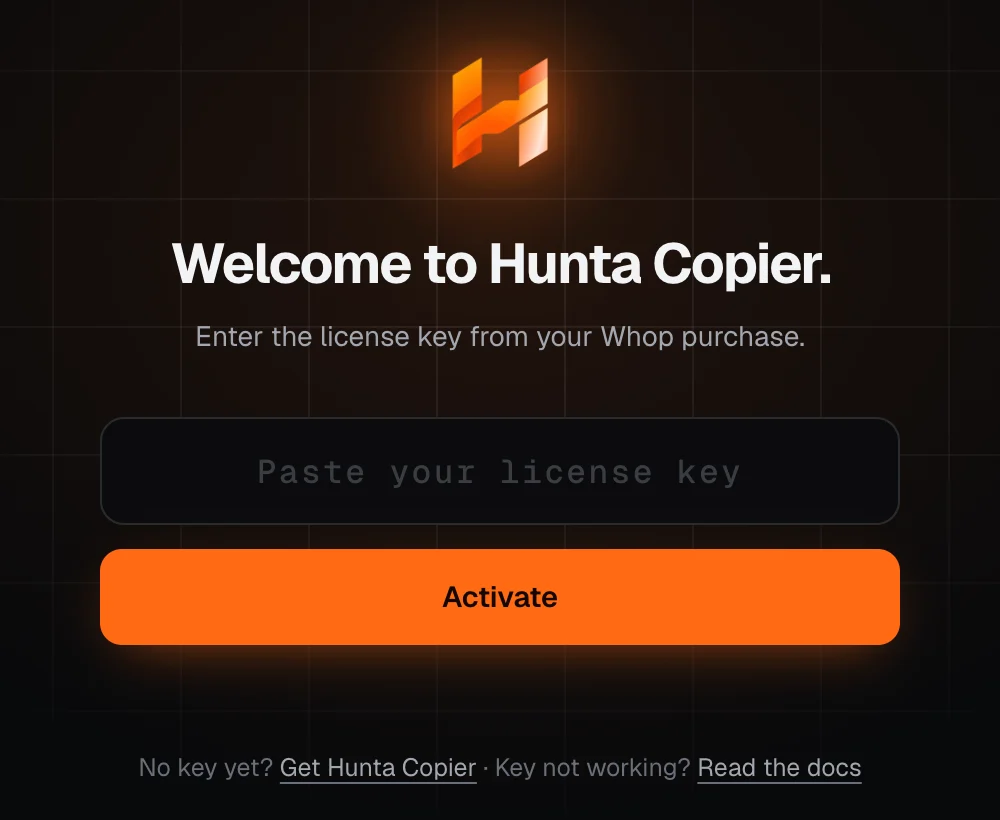
Run HuntaCopierSetup.exe. If Windows shows Windows protected your PC, click More info and then Run anyway. The installer isn't code-signed yet, so Windows doesn't know it.
Hunta Copier opens when the setup is done.
Windows protected your PC
Microsoft Defender SmartScreen prevented an unrecognized app from starting.
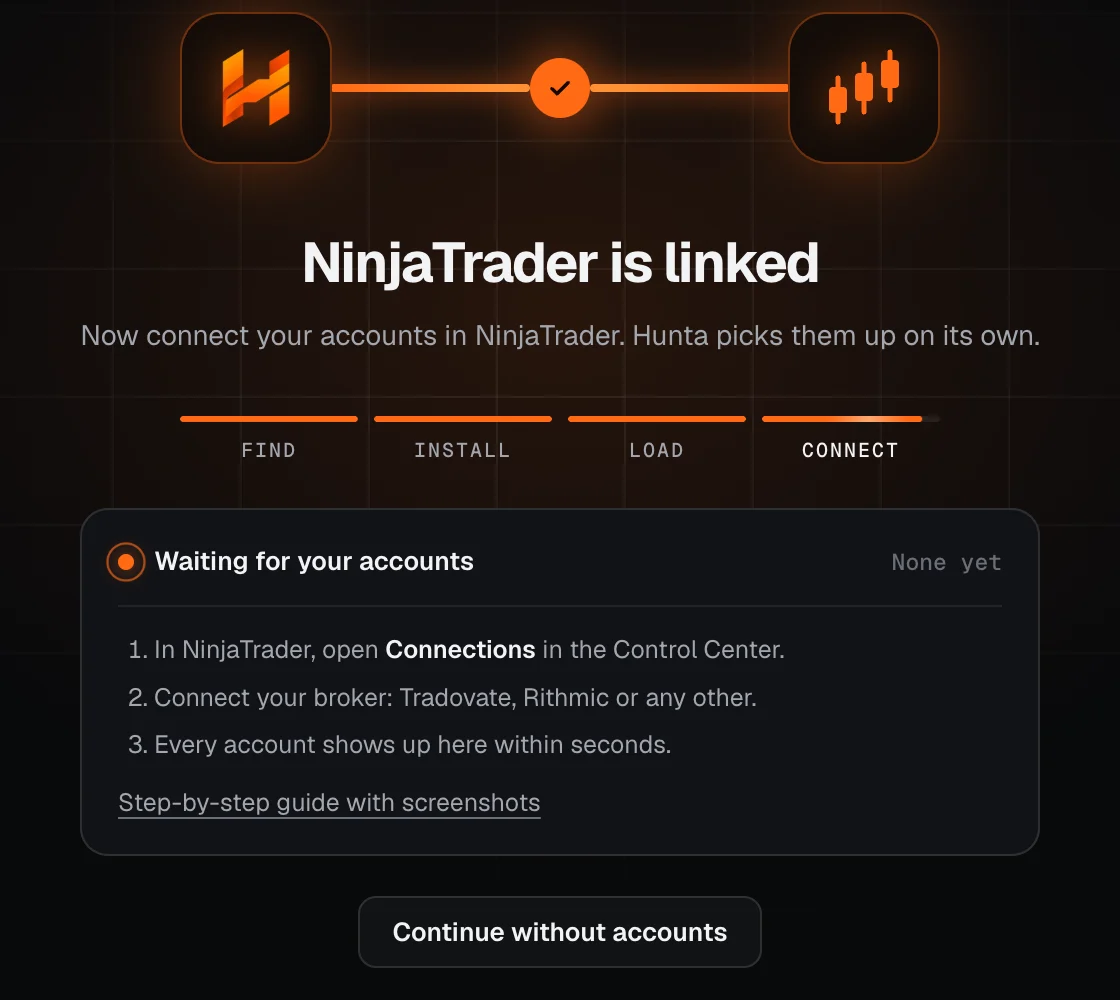
Right after the restart no broker is logged in yet, so Hunta shows Waiting for your accounts. Hunta only sees accounts whose connection is up in NinjaTrader.
In NinjaTrader's Control Center, open Connections → Configure.
Add the connection your prop firm tells you to use (for example Tradovate or Rithmic) with the login from your firm, then click OK.
Open the Connections menu again and click your connection to connect.
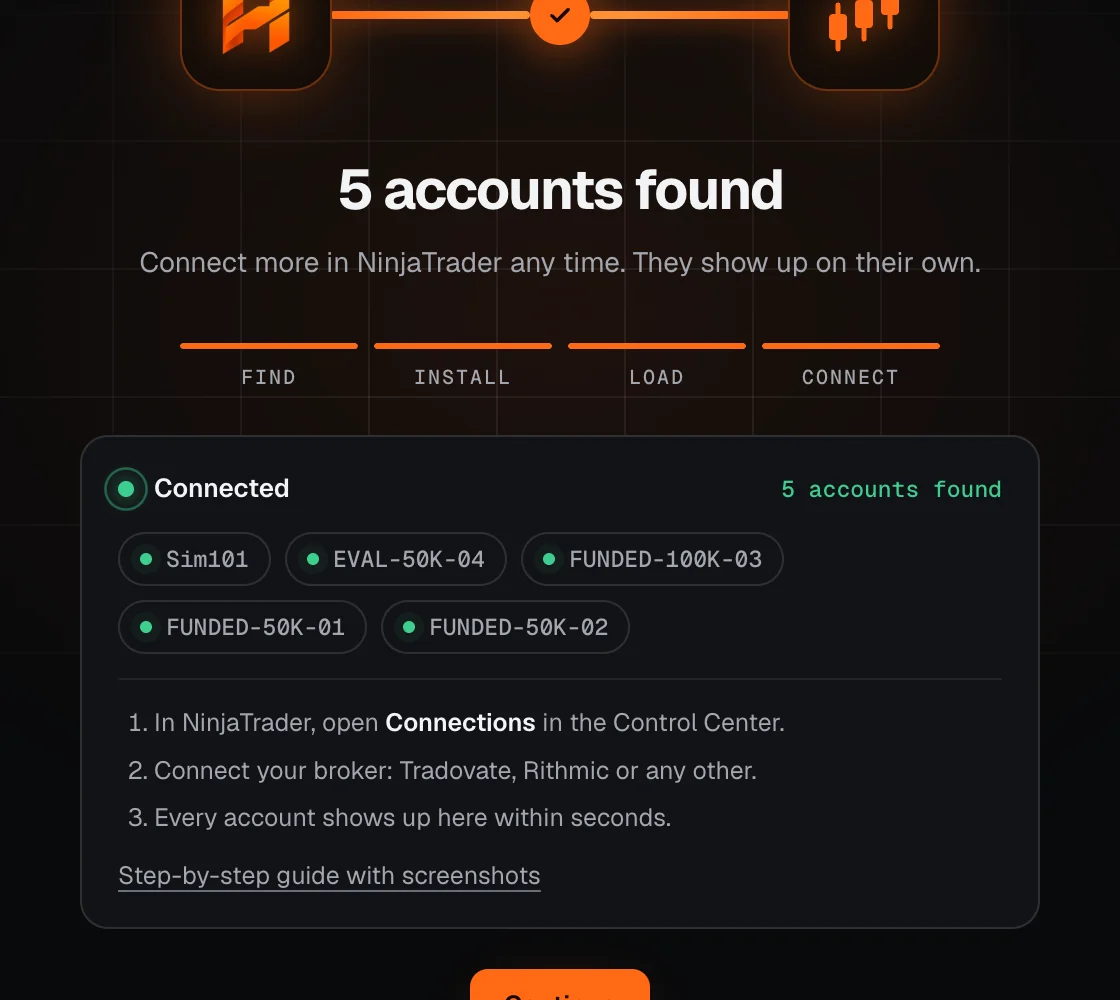
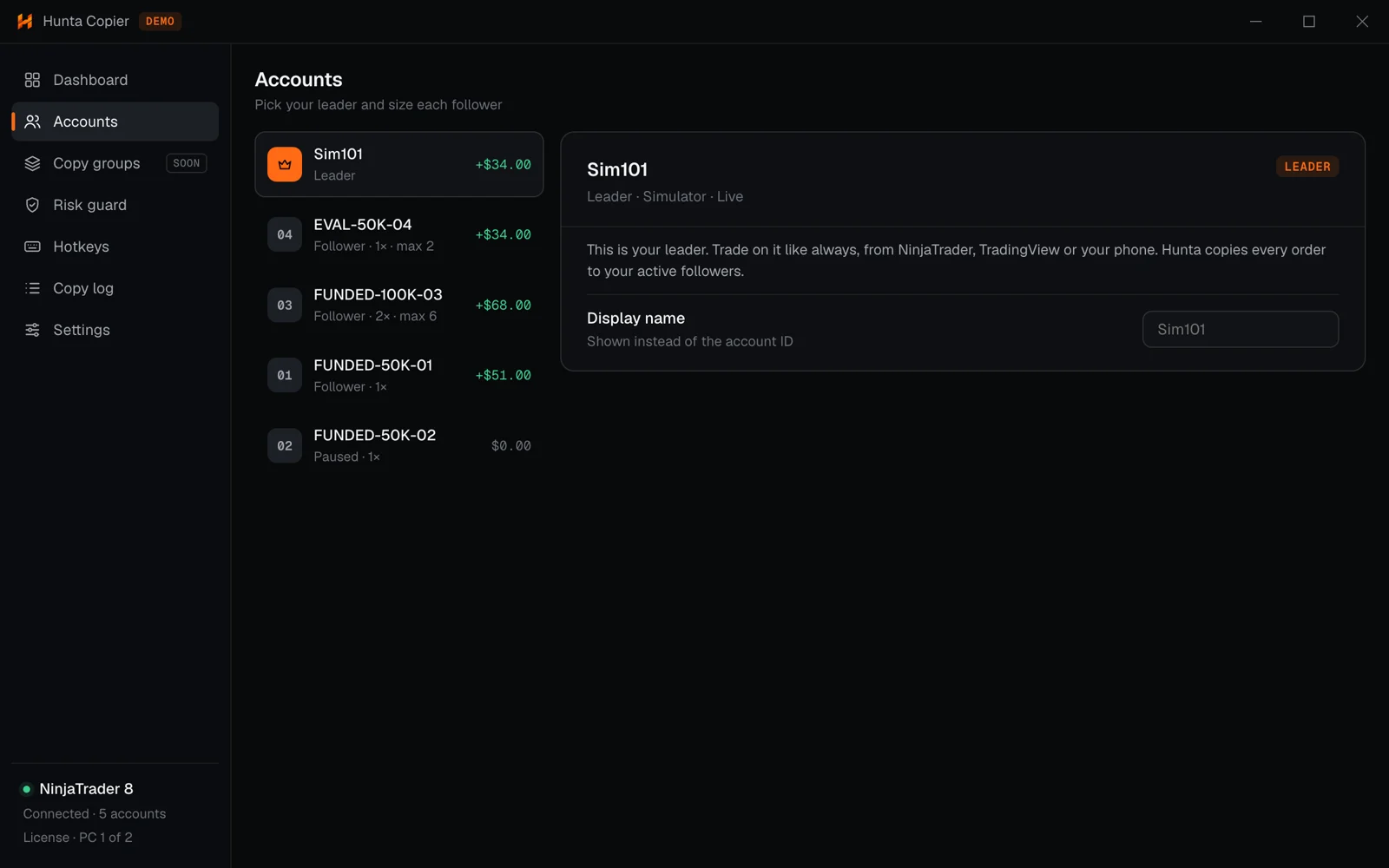
Every account shows up in Hunta within seconds. Add more connections the same way, Hunta picks them all up.
Control Center
NewToolsConnectionsWorkspacesHelp
Configure
Your broker connection
Your broker connection: Connected
Simplified illustration of NinjaTrader 8: Connections → Configure in the Control Center. Once a connection is up, its name shows green at the bottom left.
Connections
Available
Tradovate
Rithmic …
…
Add
Properties
Connection nameMy funded account
Usernamefrom your prop firm
Password••••••••
OK
Simplified illustration: pick the connection type your prop firm tells you, click Add, enter the login from your firm, click OK. The exact names in the list depend on your NinjaTrader version and firm.Hunta waits for your accounts after the NinjaTrader restart.Accounts pop in as soon as their connection is up.
Hunta couldn't find NinjaTrader's user folder (usually Documents\NinjaTrader 8).
How to fix it
Make sure NinjaTrader 8 is installed and was opened at least once on this PC. That creates the folder.
If your Documents folder was moved, for example into OneDrive, click Choose folder and pick the NinjaTrader 8 folder.
If Hunta says That folder doesn't look like a NinjaTrader 8 folder (no bin\Custom inside), you picked a different folder. The right one has a bin folder with Custom inside.
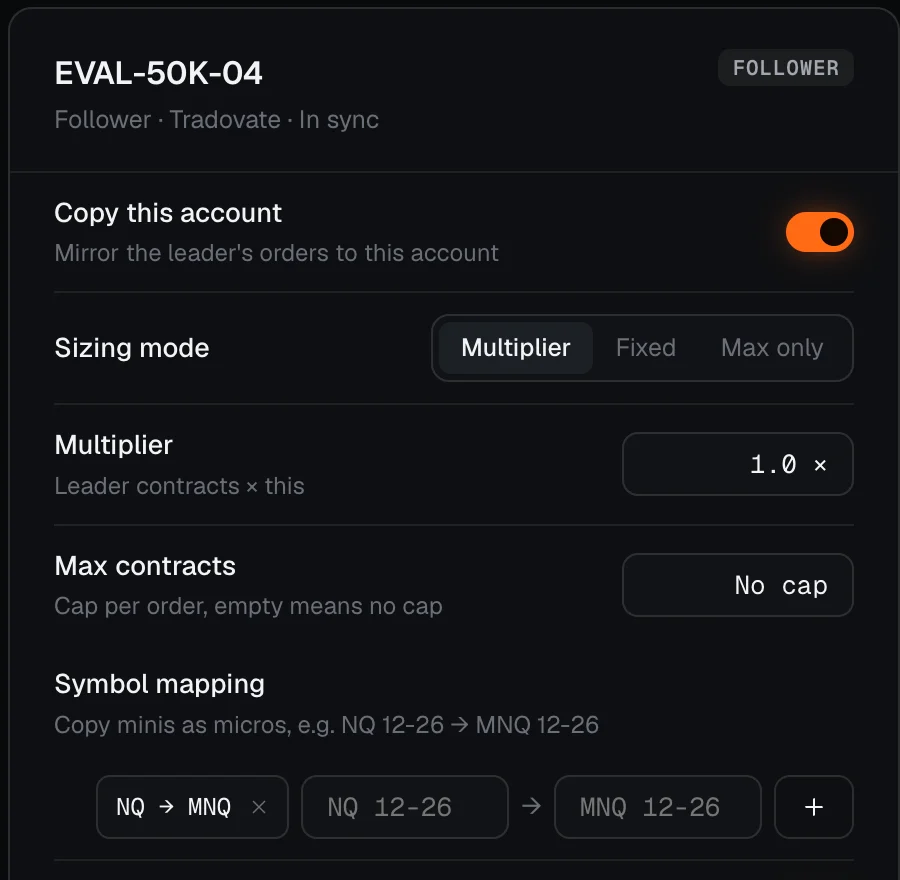
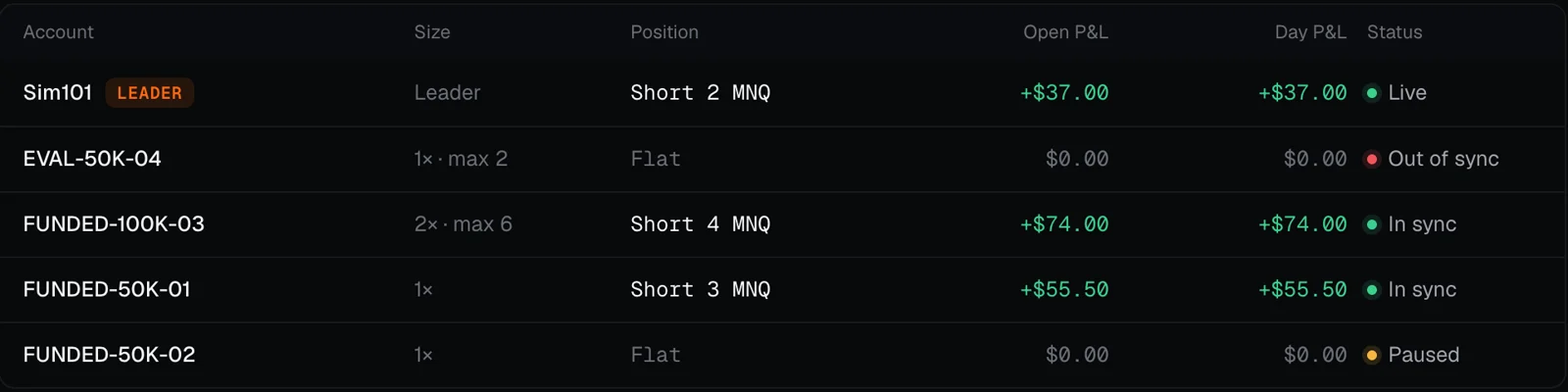
A follower's position doesn't match the leader. Usually a manual trade on the follower, an order the broker rejected, or the prop firm closed the position.
How to fix it
Look at the follower in NinjaTrader and make it match the leader, or flatten both.
Or press Flatten all (Ctrl+Shift+F) to start clean. The next trade copies normally.
One follower is flat while the leader is short: Out of sync.
You tried to switch the leader while the current one still has open positions or copied orders.
How to fix it
Close the positions or press Flatten all, then switch the leader.
NinjaTrader errors
Messages from NinjaTrader or your broker that you may see while copying. Wording can differ a little between brokers.
#Buy stop or buy stop limit orders can't be placed below the market
What it means
Also Sell stop orders can't be placed above the market. A stop was on the wrong side of the price when it reached the broker, for example when the market moved through it in a fast move.
How to fix it
Check the follower in NinjaTrader and place or move its stop by hand.
Use breakeven (Ctrl+Shift+B) once you're in profit.
If it happens on every trade, check that leader and followers trade the same contract month.
NinjaTrader lost the connection to your broker, often an internet or VPS hiccup. It reconnects on its own. Meanwhile the account shows as Offline in Hunta and nothing is copied to it.
How to fix it
Check your internet or VPS.
If it keeps dropping, restart NinjaTrader.
Stops and targets already at your broker stay there while you're disconnected.
In NinjaTrader, brackets come from the ATM strategy. With None selected you only get the entry.
Pick your ATM strategy template in Chart Trader or the SuperDOM before you enter.
Hunta copies the leader's stop and target to every follower as soon as they exist on the leader.
#NinjaTrader shows a different position than my broker
After a disconnect, NinjaTrader can briefly show an old position or old orders until it gets the update from your broker.
Disconnect and connect the connection again.
Compare with your broker's or prop firm's own platform. That one is the truth.
If they still differ, close the position at the broker and let NinjaTrader catch up.
#My P&L is different on each account or on my firm's dashboard
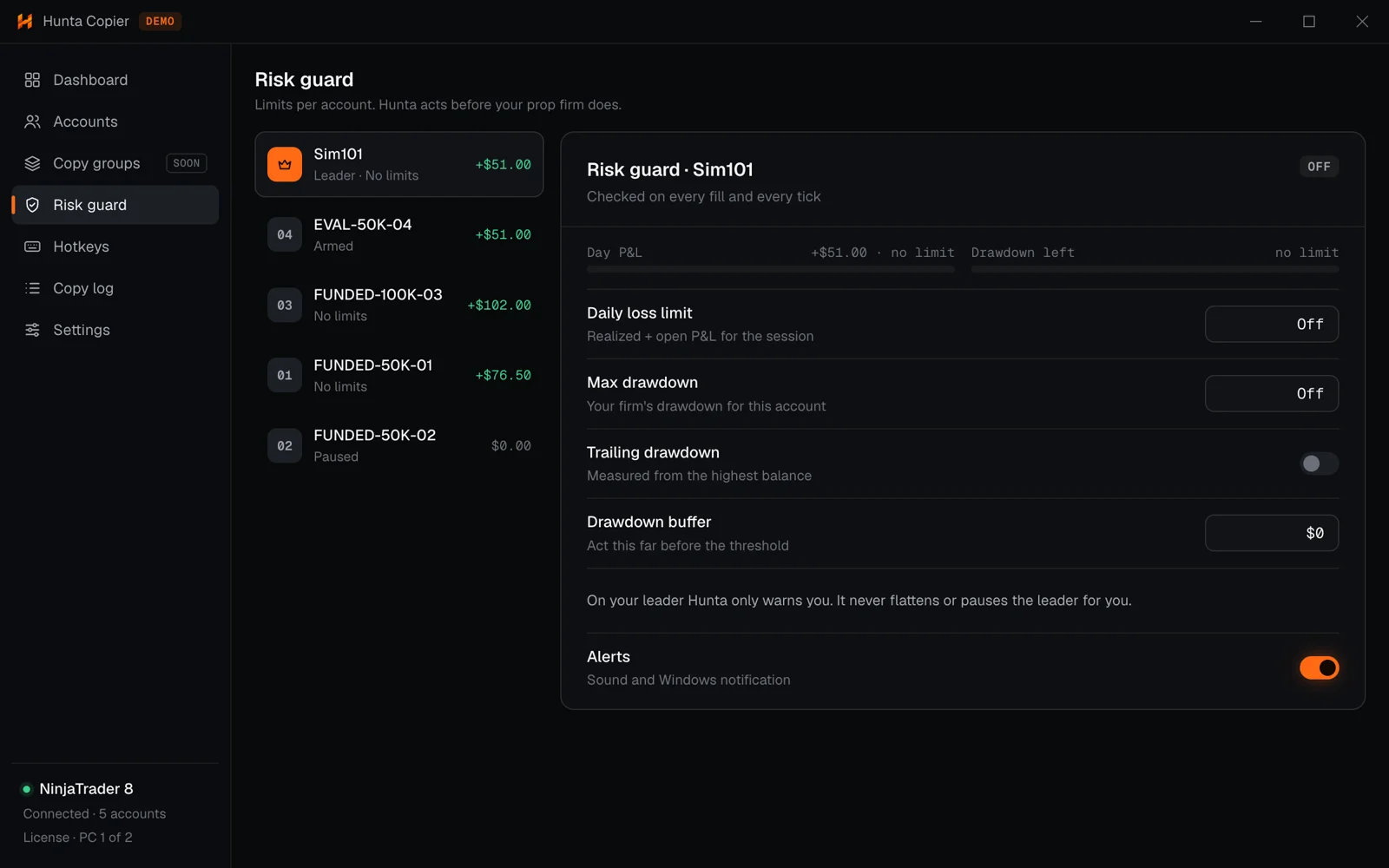
Commissions and fees differ between firms and account types, and a firm's dashboard may use a different day boundary. Fast markets can also give followers a slightly different fill.
Use your prop firm's dashboard as the reference for its rules.
Compare accounts with the same firm and size, not across firms.
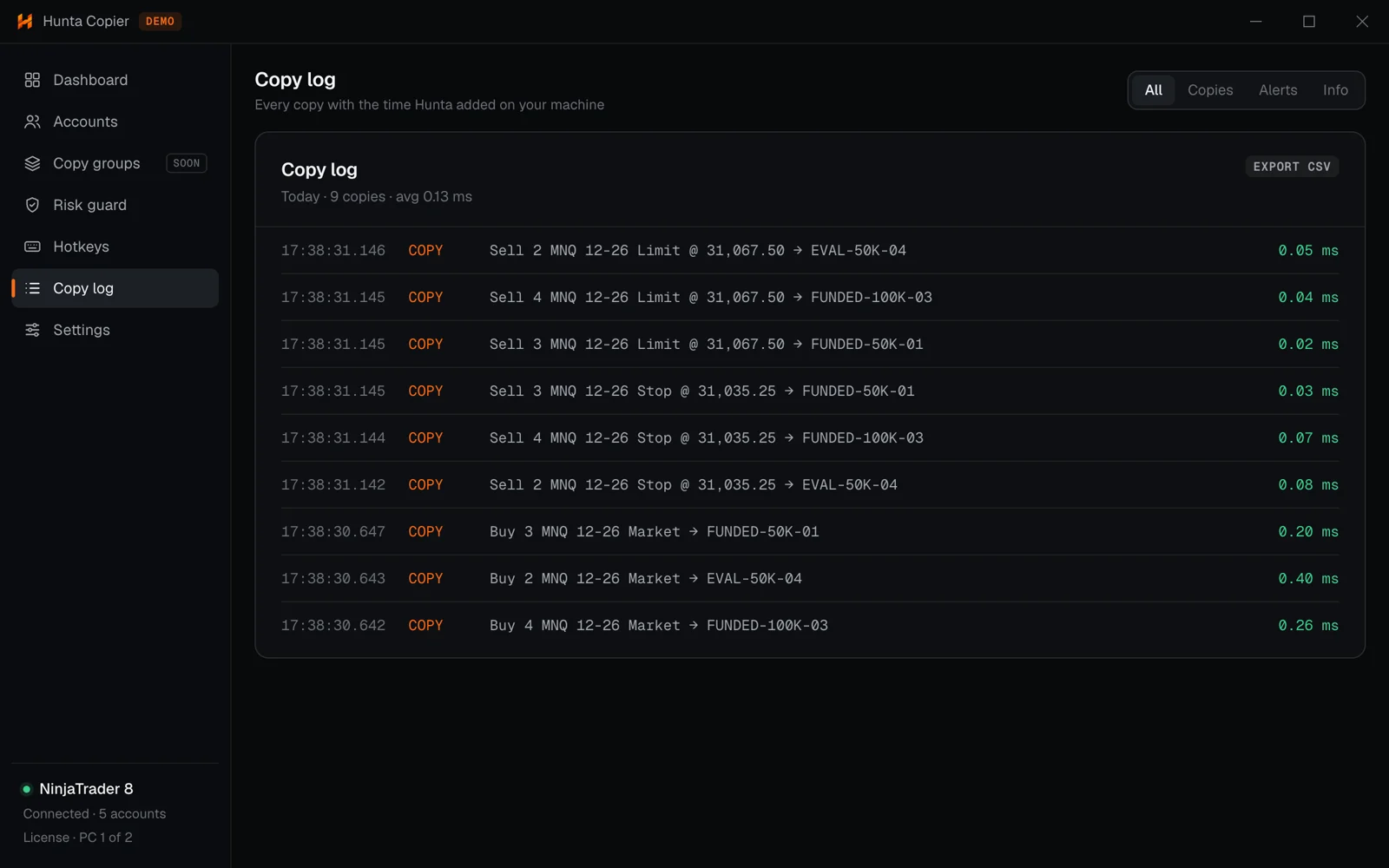
Hunta sends every copy in under a millisecond on your PC. The fill price itself still comes from your broker.
Updates are free. Hunta downloads a new version in the background and shows Update ready · Restart in the sidebar. It installs only when you click, never in the middle of a trade.
On version 1.2 or older? Download the latest version once from huntacopier.com/download with your key. After that, updates arrive by themselves.